Customizing Keyboard Layouts in an Xorg Desktop Environment
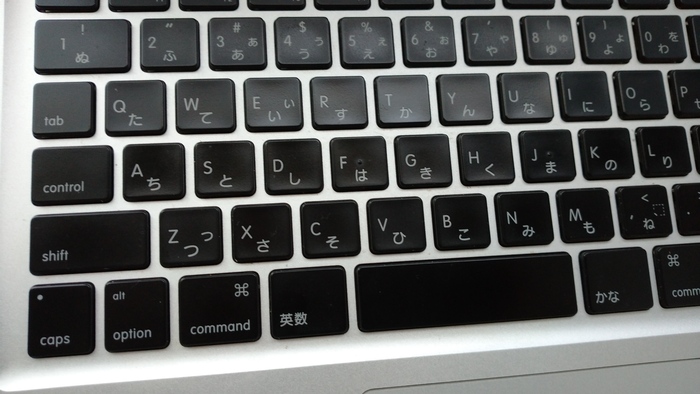
Recently, I installed Solus on an old MacBook Pro that is no longer supported. If you’ve ever used a Mac, you probably know that the positions of the Ctrl, Caps Lock, Alt, and Super keys (the Command key on macOS and the Windows key on Windows) differ from the standard JIS keyboard layout commonly used in Japan.
When using Neovim, I have a habit of leaving Insert Mode by pressing Ctrl + [ instead of the Escape key. Because the positions of Ctrl and Caps Lock are swapped on Mac keyboards, I found the default layout rather inconvenient.
Fig. 1: Keyboard of my MacBook Pro
To solve this problem, I decided to customize the keyboard layout using the setxkbmap command.
This method is not limited to Macs. Anyone using an Xorg-based desktop environment can customize their keyboard layout in a similar way, so I’d like to share the process.
Exploring the Available setxkbmap Customization Options
First, let’s take a look at the keyboard customization options provided by setxkbmap.
Assuming you have the less command installed, run the following command:
less /usr/share/X11/xkb/rules/base.lst
Press / and search for option. The options available for customization are listed under the !option section.
Fig. 2: Example of the Option List
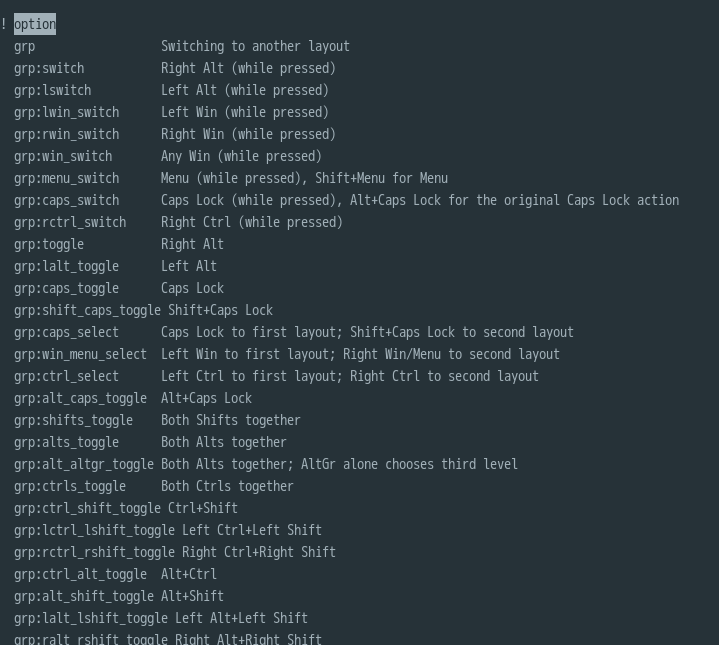
There are far too many options to cover them all here, so I’ll introduce only a few that are likely to be useful in everyday use.
| Option | Description |
|---|---|
ctrl:nocaps |
Use Caps Lock as Ctrl |
ctrl:swapcaps |
Swap Ctrl and Caps Lock |
ctrl:swap_lalt_lctl |
Swap the left Ctrl key and the left Alt key |
altwin:swap_alt_win |
Swap the Alt key and the Win key |
altwin:alt_win |
Make the Alt key function as both Alt and Win |
For my setup, I chose the following two options:
ctrl:swapcapsaltwin:swap_alt_win
Simply applying these options significantly improves the usability of Linux on a Mac.
Customizing the Keyboard with setxkbmap
Now let’s actually customize the keyboard layout.
setxkbmap -option ctrl:swapcaps -option altwin:swap_alt_win
If you specify multiple options, be aware that you must include -option for each one individually.
Feel free to add other options if needed.
Since running this command manually every time can be tedious, it is convenient to place it in your Xorg startup script or shell initialization files such as ~/.bashrc or ~/.zshrc.
Conclusion
In this article, I described how I adjusted the keyboard layout of my MacBook Pro after installing Solus, using setxkbmap.
I generally prefer not to modify keyboard layouts from their default settings. However, the location of the Ctrl key on Mac keyboards was difficult for me to accept, especially because of my Vim workflow and the way I switch Japanese input methods. As a result, I decided to customize it.
One final note: as its name suggests, setxkbmap is an Xorg-specific command. It does not work in Wayland environments, so keep that in mind if you’re using Wayland.
