Hello. This time, I’d like to introduce a collection of file managers that run in the Linux terminal.
When people think of file managers today, GUI applications such as Nemo, Dolphin, and Thunar usually come to mind. These applications allow users to manage files easily with a mouse. However, in this article, I’d like to introduce several TUI-based file managers instead.
The Appeal of Console Applications
Applications that run in terminal emulators such as xterm and GNOME Terminal are often called console applications. The term originally referred to applications that ran directly on a system console, but in today’s desktop-oriented environment, most people use them through terminal emulators running inside a graphical desktop.
Personally, I’ve always been attracted to console applications and use them frequently (some people might call it nostalgia). Not just file managers, but console applications in general have many advantages. They are usually small in size, quick to install, and consume very few system resources. Once you’ve learned how to use them, the same skills can often be applied regardless of which Linux distribution you’re using.
Another advantage is that they work perfectly on servers without an X server installed. By installing console applications, you can perform many tasks through an intuitive TUI without relying on long and complicated command-line operations.
And on a completely personal note, I think console applications have that classic “real computer” feeling you might see in movies from the 1980s.
FD clone
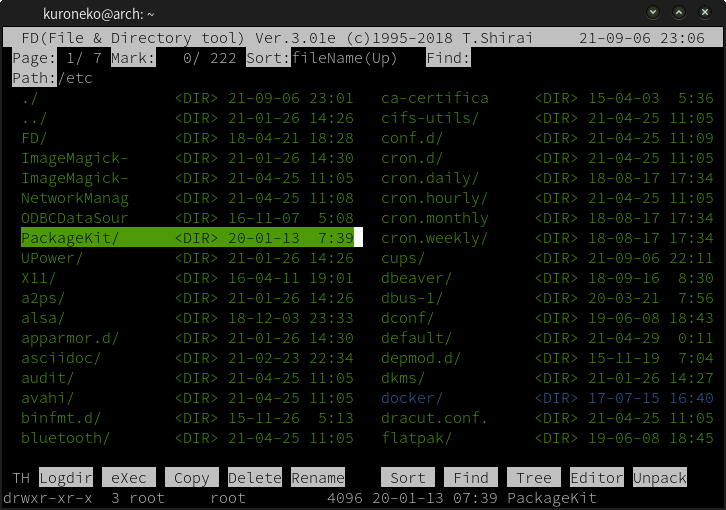
FD clone is a Unix-compatible clone of the famous MS-DOS file manager FD.
Although several file managers existed for MS-DOS, FD, developed by Japanese programmer Atsushi Isha, became particularly popular because of its excellent usability. At a time when file operations were primarily performed through command-line commands, FD visualized files and made file management possible through simple keyboard shortcuts.
Takashi Shirakawa later developed FD clone based on the original FD. Even today, FD clone still has a passionate user base. If you’re interested in classic file management tools, it’s definitely worth giving it a try.
Installation
To install it on Ubuntu:
sudo apt install fdclone
On Arch Linux, install the fdclone package from the AUR.
Midnight Commander (mc)
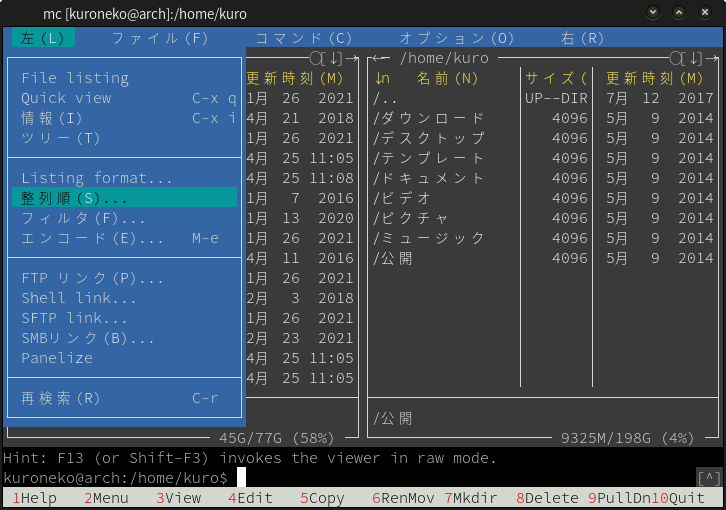
Midnight Commander is a powerful visual file manager featuring pull-down menus. It was originally developed as a clone of Norton Commander (NC).
One of its strengths is support for mouse operations. Tasks such as sorting files can be performed intuitively with a mouse, so users don’t need to memorize a large number of keyboard shortcuts just to get started.
In addition to basic operations such as creating directories, copying files, and deleting files, Midnight Commander provides a variety of advanced features. Its keybindings are somewhat similar to those of Emacs, but it also supports arrow keys, Page Up, and Page Down for navigation.
The built-in file viewer supports Vim-like keybindings, making it comfortable even for Vim users. (That said, users who are deeply familiar with Vim may find ranger or vifm to be more naturally aligned with Vim’s workflow.)
Midnight Commander can also access virtual file systems such as FTP and SFTP, making remote file management extremely convenient. It also includes useful features such as bulk file renaming.
Installation
To install it on Ubuntu:
sudo apt install mc
On Arch Linux:
pacman -S mc
vifm

vifm is a file manager that can be operated using Vim keybindings.
Not only cursor movement but also operations such as yanking and pasting follow Vim conventions. Since vifm uses a dual-pane layout, it is particularly convenient for copy-and-paste operations because both the source and destination directories can remain visible at the same time.
While vifm may not have the most eye-catching interface, it becomes an extremely efficient file manager once you get used to it. Users who regularly use Vim can often perform operations such as selecting multiple files and yanking them without even consulting the help documentation.
Installation
To install it on Ubuntu:
sudo apt install vifm
On Arch Linux:
pacman -S vifm
ranger
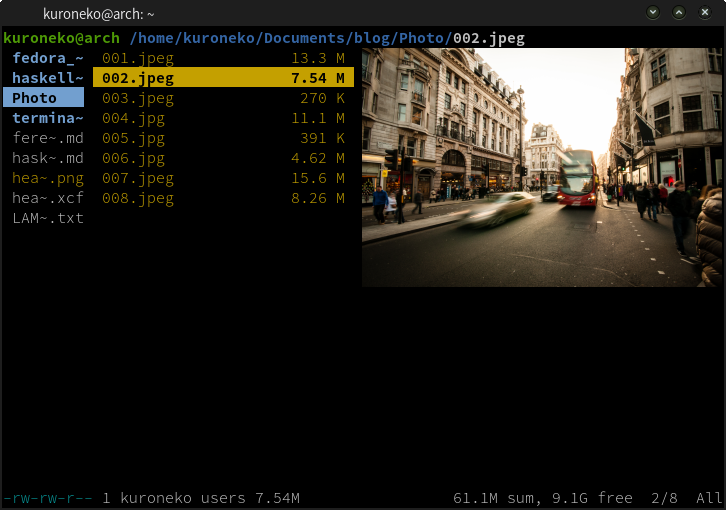
ranger is a Python-based file manager that offers a Vim-inspired workflow similar to vifm.
Unlike vifm’s dual-pane interface, ranger adopts a column-based layout that displays parent and child directories within a single view. Users accustomed to vifm’s copy-and-paste workflow may initially find this approach a little less convenient.
Cursor movement and file operations such as copying and pasting generally follow Vim conventions. If you’re already familiar with Vim, you’ll likely feel comfortable using ranger right away.
Although it does not provide a dual-pane interface, ranger supports multiple tabs, allowing you to switch between several working directories. By installing w3m, ranger can even preview images and PDF files, offering functionality that is surprisingly advanced for a terminal-based application.
Installation
To install it on Ubuntu:
sudo apt install ranger
On Arch Linux:
pacman -S ranger
nnn
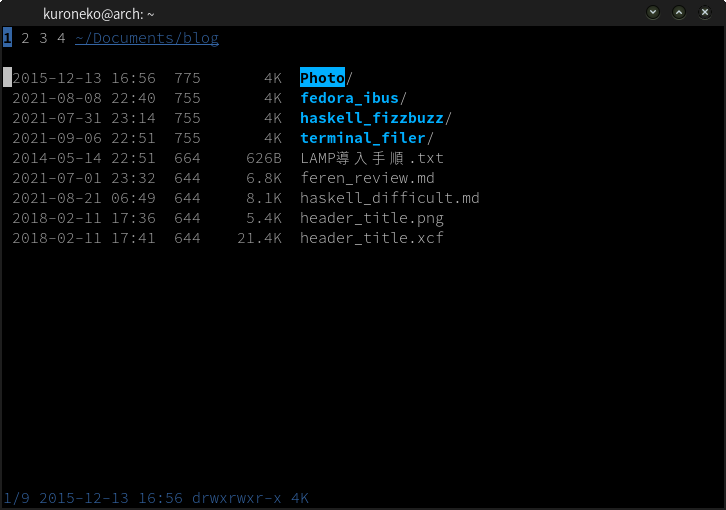
nnn is a simple and lightweight file manager that supports Vim-style keybindings.
Like ranger, it allows users to perform cursor navigation and file operations such as copying and pasting using Vim-inspired commands. However, nnn is designed to be relatively minimalistic, which means there are fewer commands and keybindings to learn.
That said, its keybindings are not completely identical to ranger’s, so you’ll still need to spend some time with the help screen. Another notable difference is its workspace system. nnn provides four workspaces by default, and unlike ranger’s tabs, they cannot be added or removed dynamically.
Installation
To install it on Ubuntu:
sudo apt install nnn
On Arch Linux:
pacman -S nnn
Conclusion
Some readers may wonder why anyone would choose a keyboard-driven file manager when so many user-friendly graphical alternatives are available.
However, I hope this article has conveyed at least some of the unique charm of console applications. They may not be as visually polished as modern GUI tools, but they offer efficiency, portability, and a distinctive computing experience that continues to attract many users.
