In this article, we’ll set up a Japanese input environment on Solus using Fcitx. Although IBus is configured as the default input method immediately after installing Solus, we’ll replace it with Fcitx and configure fcitx-mozc for Japanese input.
Prerequisites
The environment used in this guide is as follows:
- Desktop Environment: Budgie
- Solus Version: 4.5
- Shell: Bash (default)
Installing Fcitx and fcitx-mozc
For this guide, we’ll use fcitx-mozc as the Japanese Input Method Editor (IME).
Install the required packages with the following command:
sudo eopkg install fcitx-configtool fcitx-mozc
The fcitx package itself will be installed automatically as a dependency, so there’s no need to install it separately.
Environment Variables
On distributions such as Arch Linux or Void Linux, you typically need to configure several environment variables manually. Fortunately, Solus handles this automatically.
When you install the fcitx package, the following script is installed:
/usr/share/defaults/etc/profile.d/50-fcitx.sh
This script is automatically sourced when you log in with Bash, so you don’t need to configure any environment variables yourself.
Simply log out and log back in, and the required environment variables will be applied automatically.
Starting Fcitx
No additional startup configuration is necessary.
After logging out and back in, LightDM, the default display manager, automatically starts Fcitx for you.
Once you’ve logged back in, you should see a keyboard icon in the system tray similar to the one below.

To verify that everything is working, open a text editor (such as gedit) and try typing.
If you’re using a Japanese keyboard, you should be able to switch to Japanese input using either:
- Half-width/Full-width (半角/全角) key
- Ctrl + Space
Configuration
To open the configuration dialog, right-click the Fcitx icon in the system tray and select Configure.
If you’re unsure about the available options, I recommend simply using the default settings.
Input Method Engine
At the time of writing (March 11, 2024), Mozc is the primary Japanese input engine available for Fcitx on Solus, so the default configuration is generally sufficient.
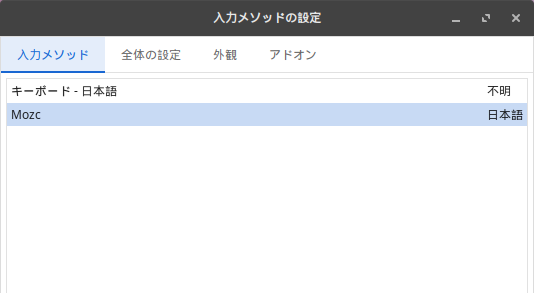
The recommended configuration is to place Mozc directly below Keyboard - Japanese, as shown below.
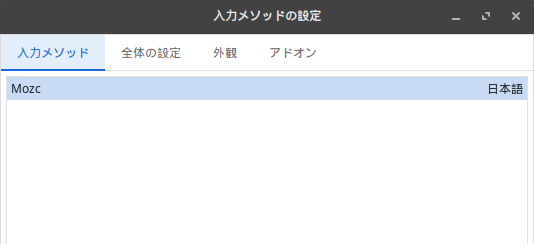
Alternatively, you can configure Mozc as the only input method and let Mozc itself handle switching between Japanese and English input, without using Fcitx to switch IMEs.
In that case, your key bindings for switching input modes will be controlled by Mozc, not Fcitx.
The configuration would look like this:
Changing Fcitx Key Bindings
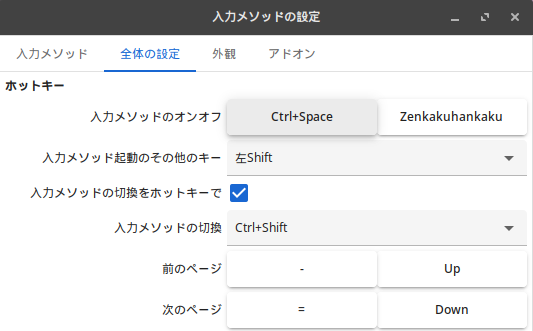
By default, the input method is toggled using either:
- Half-width/Full-width (半角/全角)
- Ctrl + Space
If you’d like to change these shortcuts, open the Global Config tab in the Fcitx configuration window.
Changing Mozc Key Bindings
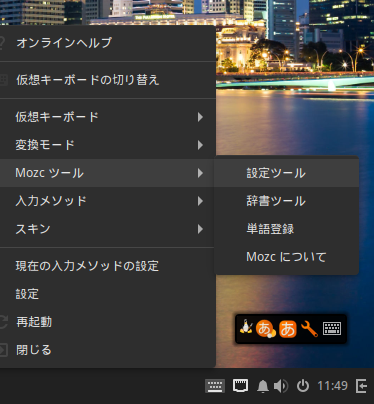
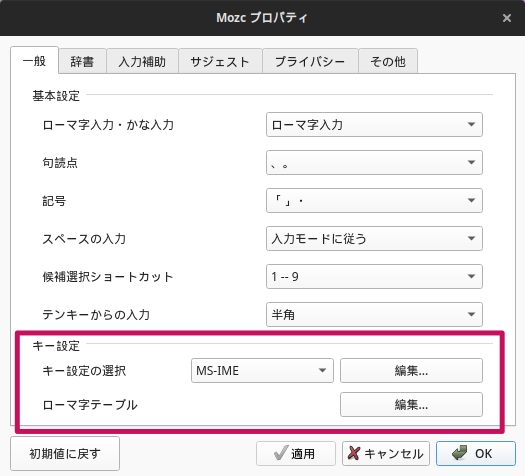
To configure Mozc itself, right-click the Fcitx system tray icon and select:
Mozc Tools → Configuration Tool
From there, you can customize the keys used for switching between Japanese and English input.
By default, the Half-width/Full-width (半角/全角) key is assigned for this purpose.
Conclusion
In most cases, simply installing fcitx and fcitx-mozc is enough—almost all of the required configuration is handled automatically by Solus.
Unless you have specific preferences, I recommend starting with the default settings and customizing them only if necessary.
I hope this guide helps you set up a comfortable Japanese input environment on Solus.
